
When creating a class on the web, the MyGame+ program associated with the selected booking filter is now automatically populated in the class builder. This ensures the correct programme is linked to each class without requiring manual selection and students are then atuomatically assigned to the MyGame+ program.
What's new
- Booking filter selection moved above MyGame+ field – On Step 2 of class creation, the Where should this class appear in the booking system? question and dropdown fields now appear below the program filter selection.
- Automatic MyGame+ programme assignment – Once a booking filter is selected, the MyGame+ program assigned to that filter in Booking Filter Management is automatically populated in the MyGame+ program field.
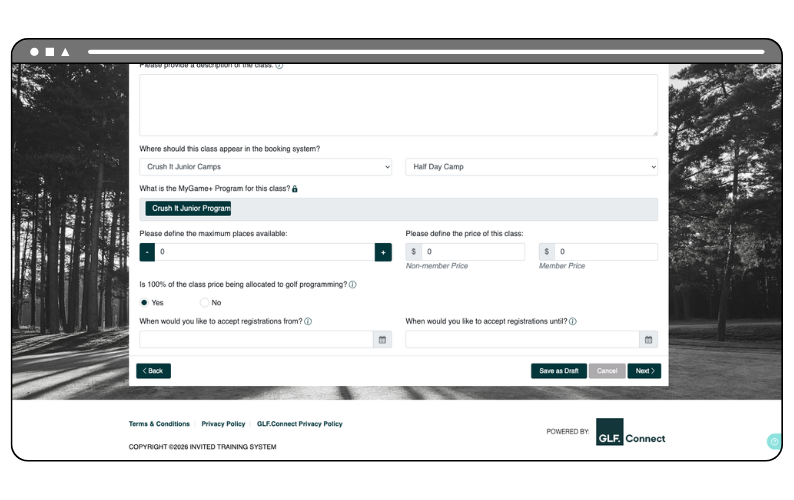
- Program field locked after auto-assignment – When a program has been automatically assigned, a lock icon will appear on the MyGame+ field and the selection cannot be changed within the class builder.
- Manual selection still available – If no MyGame+ program is assigned to the selected booking filter, the field will remain blank and a programme can be selected manually from the dropdown if required.
How to use
- Begin creating a new class on the web and navigate to Step 2.
- Select the relevant booking filter under Where should this class appear in the booking system?
- If a MyGame+ programme is assigned to the selected filter, it will automatically populate in the MyGame+ programme field and a lock icon will appear.
- If the field remains blank, select a programme manually from the dropdown if required.
- Continue with class creation as normal.