
When creating a new student account on GLF. Connect, coaches, managers, and owners space users can now assign the student to one or more MyGame+ programmes at the point of registration. This removes the need to navigate separately to assign a student to a programme after the account has been created, streamlining the onboarding process for new students.
What's new
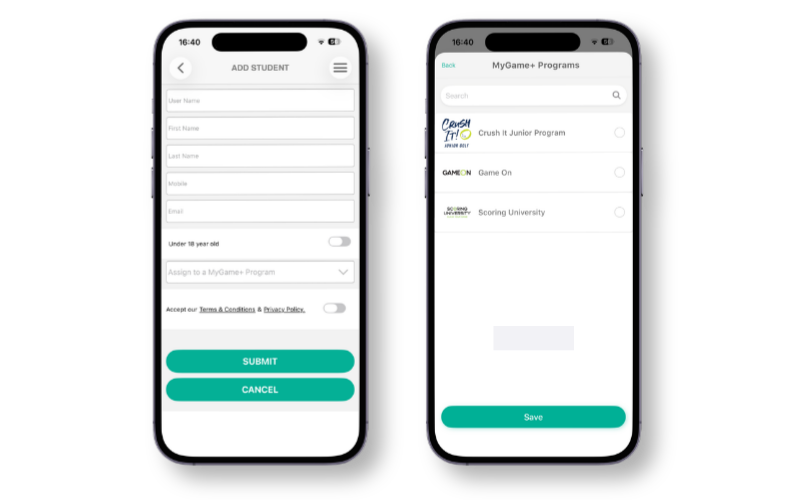
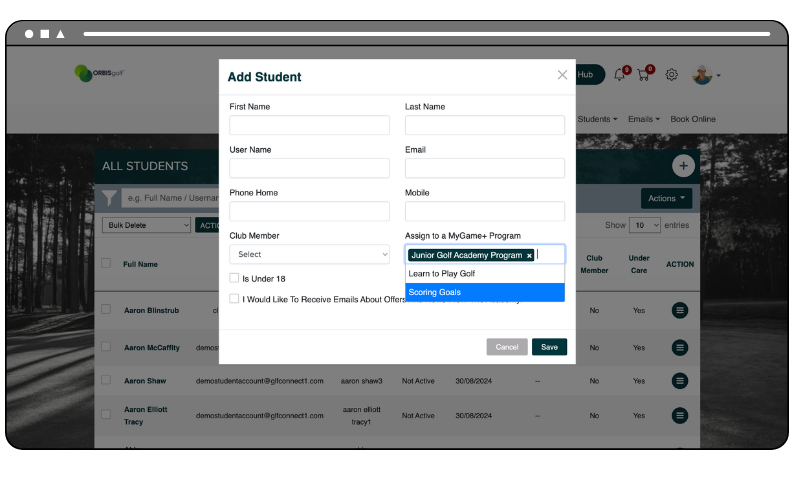
- Assign a MyGame+ programme during account creation - A new Assign to a MyGame+ Program field is now available within the new student registration forms, on both the web and mobile apps. One or more programmes can be selected at the time of account creation, and the student will be enrolled into the chosen programme(s) immediately upon registration.
- Assigning a programme at this stage is optional — Accounts can still be created without a programme assignment if preferred.
- Only active programmes are shown - The programmes available to select are limited to those that have been activated for your academy within the Academy Settings. This ensures coaches, managers, and owners can only assign students to programmes relevant to their academy.
How to use
On the web:
- Navigate to the Add New Student screen or pop-up within your relevant system area.
- Complete the required registration fields as normal.
- Locate the Assign to a MyGame+ Program field.
- Select one or more programmes from the dropdown list.
- Click Register Now to create the account. The student will be enrolled in the selected programme(s) immediately.
On the mobile app:
- Open the GLF. Connect app and navigate to the Add Student screen accessible across the application.
- Complete the required registration fields.
- Tap the Assign to a MyGame+ Program field and select the relevant programme(s) from the list.
- Tap Save to create the account.