
Booking filters are now be linked to specific MyGame+ programs. This allows academies to ensure that the correct programme is associated with the right class types or lesson filters. Booking filters which have been created at the superowner and owner levels and therefore show automatically at the academy level will have the correct MyGame+ assigned to them.
What's new
- New MyGame+ program field in Booking Filter Management – A new dropdown field named Select the MyGame+ Program is now available when creating or editing a main programme filter. If manager users have the ability to create new booking filters, then they are able to assign a myGame+ program to the filter which is optional.
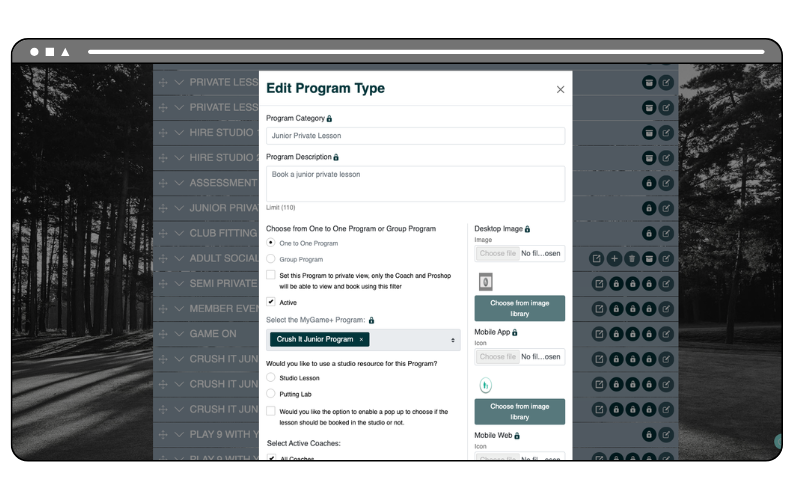
- Automatic student enrolment on booking – Once a MyGame+ programme has been assigned to a booking filter, any student who books a lesson or class within that filter will be automatically enrolled to the program. This means students can access the program immediately on the GLF. Connect mobile app, without any manual assignment needed from a coach or manager.
How to use
Assigning a MyGame+ programme to a filter at Manager:
- Navigate to Booking Filter Management within your system area.
- Select an existing programme filter to edit, or create a new one.
- Locate the Select the MyGame+ Program dropdown and select the relevant programme from the list. Only programmes activated for your academy will appear.
- Save and publish the filter as normal.