
Coaches can now edit or delete previously logged course play scores directly from the Score Details screen. This applies to scores logged by both coaches and students, giving coaches full control over their students score records.
What's new
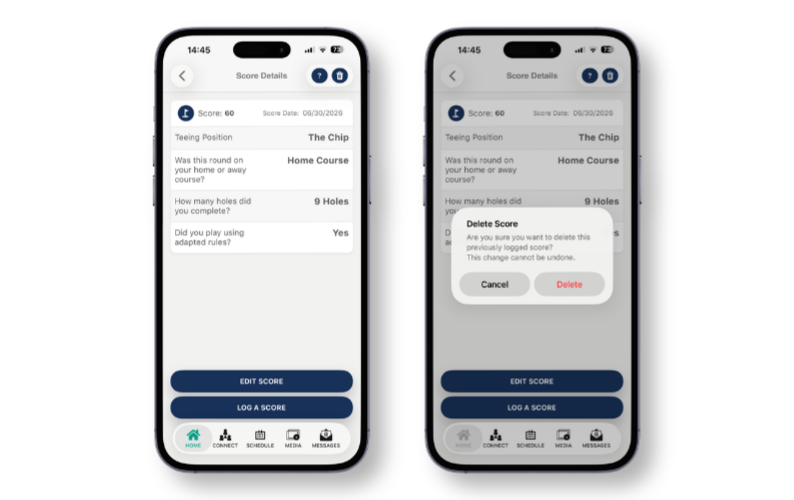
- Edit a previously logged score – A new Edit Score option is available on the Score Details screen, accessible by coaches only. Selecting this will return you to the first step of the Log a Score wizard with all previously submitted information retained, allowing you to amend any step before resubmitting.
- Delete a previously logged score – A Delete button is available in the top right corner of the Score Details screen, accessible by coaches only. Coaches can delete scores logged by students as well as scores logged by coaches.
- All submitted information is visible on the Score Details screen – When reviewing a score, all information submitted through the Log a Score wizard is displayed. If a step was skipped, N/A will appear in place of an answer.
How to use
Editing a score:
- Navigate to the On Course Tracking screen within the relevant MyGame+ programme.
- Locate the score you wish to edit in the Score History section and tap to open the Score Details screen.
- Tap Edit Score.
- You will be taken to the first step of the Log a Score wizard with all previously entered information pre-populated.
- Navigate through the wizard steps, making any changes required.
- Tap Submit on the final step to save your changes.
Deleting a score:
- Navigate to the On Course Tracking screen within the relevant MyGame+ programme.
- Locate the score you wish to delete in the Score History section and tap to open the Score Details screen.
- Tap Delete in the top right corner of the screen.
- A confirmation pop-up will appear asking: Are you sure you want to delete this previously logged score? This change cannot be undone.
- Tap Delete to confirm, or Cancel to return to the Score Details screen.