
Two updates have been made to the Log a Score wizard in MyGame+. Certain steps are now be configured as optional, allowing users to skip them when logging a score. A new final step also requires users to assign the date the round was completed, ensuring accurate record-keeping across all programmes.
What's new
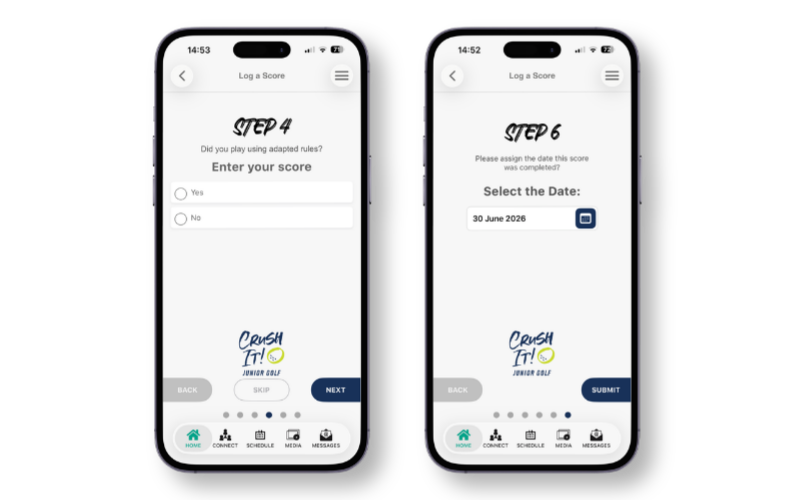
- Optional steps with a Skip button – When logging a score, a Skip button now appears between the Back and Next buttons on steps that have been configured as non-mandatory by your programme administrator. Tapping Skip allows you to move past that step without entering a response.
- Skip availability is programme-specific – Whether Skip appears on a given step depends on how your academy's MyGame+ programme has been configured. If a step is set to mandatory, you must complete it before progressing. If it is set to non-mandatory, the Skip button will be available.
- New date step added as the final step – All MyGame+ programmes now include a final step when logging a score that asks: Please assign the date this score was completed? Today's date is automatically selected, but you can tap the calendar icon to choose a different date. This step is mandatory and appears for all programmes — the Skip button is not available on this step.
How to use
Skipping a non-mandatory step:
- When logging a score, progress through the wizard as normal.
- On any step where Skip is displayed, you can either enter a response and tap Next, or tap Skip to move to the next step without submitting an answer.
- If you skip a step, the text Skipped will appear against that question when the score is viewed on the Score Details screen.
Assigning the date your score was completed:
- On the final step of the Log a Score wizard, you will see the prompt: Please assign the date this score was completed?
- Today's date is pre-selected. If your round was completed on a different date, tap the calendar icon and select the correct date.
- Tap Submit to log the score.