
We have made a number of improvements to how classes and events are displayed when a coach uses the Bulk Challenge or Bulk Log Course Play Scores options within the MyGame+ dashboard tab. These changes make it easier to find and select the right class or event, and ensure that all relevant students are available when updating challenges or logging scores.
What's changed
- Default filter is now set to All - Previously, when navigating to the Active Classes or Active Events tab via either of these options, the In Progress filter was selected by default. The default filter is now set to All, so coaches immediately see their full list of classes and events without needing to manually change the filter first.
- Classes are now shown by class, not by session - Previously, the class list was displaying individual sessions rather than the class as a whole. Classes are now grouped and displayed at the class level, giving a cleaner and more consistent view when selecting students for bulk updates.
- Pro-rata classes show all enrolled students - For pro-rata classes, all students enrolled in the class will now appear in the student list once that class is selected — regardless of which specific sessions they are attending. This ensures no students are missed when bulk updating challenges or logging course play scores.
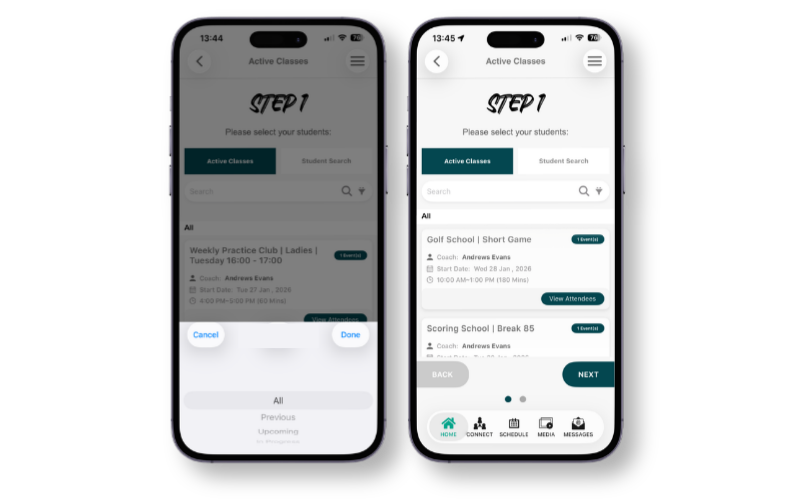
Updated filter logic
The filters available on the Active Classes and Active Events tabs now work as follows:
| Filter | What it shows |
|---|---|
| All | All classes, regardless of session start and end dates |
| Upcoming | Classes where the first session date are in the future |
| In Progress | Classes where some sessions have been delivered but future sessions remain |
| Previous | Classes where the final session date is in the past |
Classes are listed with the most recently started class appearing first.
How to access
- Open the MyGame+ tab within your Coach dashboard in the GLF.Connect app.
- Tap Bulk Challenge or Log Course Play Scores.
- On the student selection screen, tap the Active Classes or Active Events tab.
- The All filter will be selected by default — your full class list will be displayed immediately.
- Use the filter options to narrow down by Upcoming, In Progress, or Previous if needed.
- Select your class to view all enrolled students and proceed with your bulk update.