
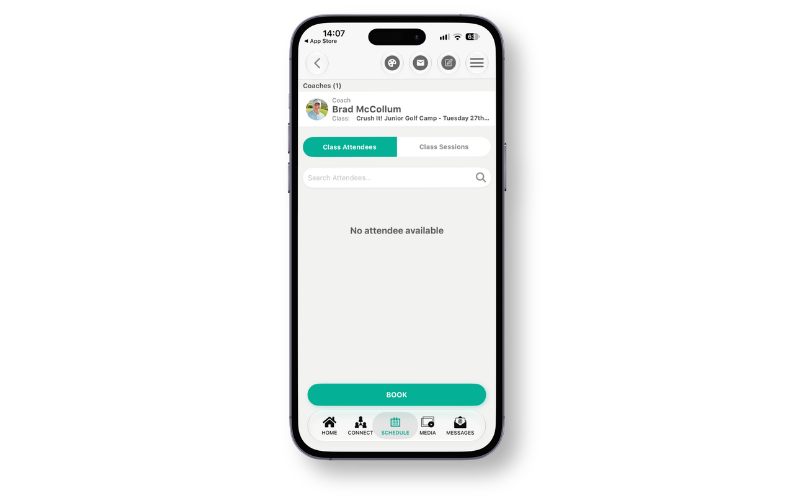
GLF. Connect now includes a Book button on the Class Appointment screen of the mobile apps. Coach users can start booking a student onto a class directly from the class they are viewing via the schedule, without needing to navigate to the booking system. For classes with the Pro Rated setting enabled, a new pop-up lets you choose whether you are booking the student onto all sessions or only the upcoming sessions to mirror the web based functionality.
What's new
- Book button – A new Book button now appears at the bottom of the Class Appointment screen whenever the Class Attendees or Class Sessions tab is selected. The button is available even if the class has no attendees yet, so you can book the first student straight from the class.
- Class Booking Preference pop-up for Pro Rated classes – If the Pro Rated setting is enabled on the class, selecting Book opens a Class Booking Preference pop-up asking: “Are you booking the student on all sessions or only the upcoming sessions?” Choose one of two options, All Sessions or Upcoming Sessions, then select Confirm to continue. You can close the pop-up at any time using the X icon in the top right corner.
- When the pop-up appears – The pop-up always appears for Pro Rated classes, regardless of whether the sessions are in the past or the future. It does not appear for classes where the Pro Rated setting is not enabled.
- Continue to the Select a Student screen – After you select Book (and make your selection on the pop-up for Pro Rated classes), you are taken to the Select a Student screen to continue the booking. The booking then behaves in the same way as the web-based functionality.
How to use
Booking a student onto a class (Pro-Rated):
- Open the GLF. Connect app and go to the schedule view.
- Tap the class to open the Class Appointment screen.
- Select the Class Attendees or Class Sessions tab.
- Tap Book at the bottom of the screen.
- In the Class Booking Preference pop-up, select All Sessions or Upcoming Sessions, then tap Confirm.
- Select the student(s) on the Select a Student screen to continue the booking.
Booking a student onto a class (class not Pro Rated):
- Open the Class Appointment screen and select the Class Attendees or Class Sessions tab.
- Tap Book at the bottom of the screen. The Class Booking Preference pop-up does not appear for these classes.
- Select the student(S) on the Select a Student screen to continue the booking.