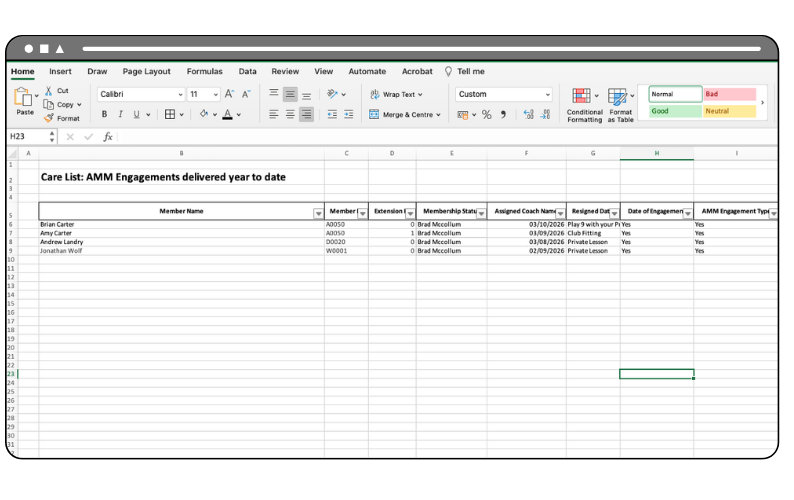
To support the recent AMM changes for 2026, a new report is available in GLF to support you with engaging and activating your Care List.
This new report is accessible at anytime on the web and mobile web based system, and can be automated straight to your email inbox keeping you right up to date with AMM engagements and activations at your club.
Accessing the Report
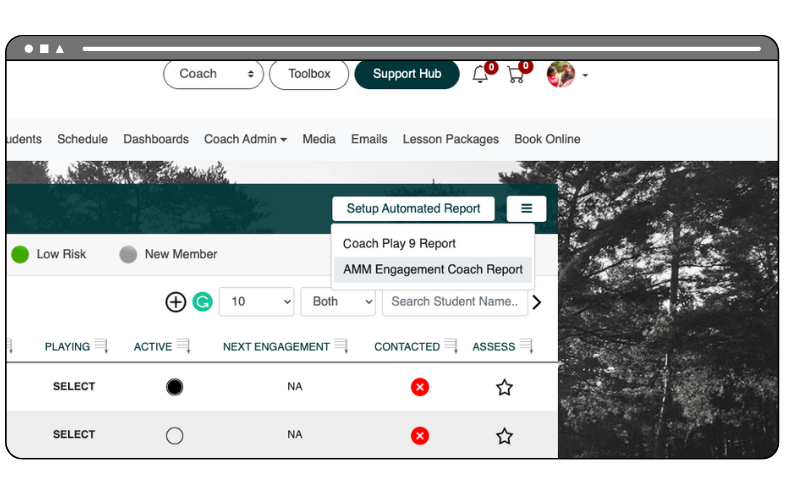
You can run the report at any time. To do this, navigate to the Customer Care List screen on the web and mobile web system via the Coach Admin menu navigation.
In the top right-hand corner of the screen, select the new Action menu icon and choose AMM Engagement Report.
After a short period, the report will be exported in CSV format straight to your device:
Setting up the Automated Report
You can automate the report to be sent straight to your email inbox on a weekly basis. The report has already been activated for you and is set to be sent on Mondays at 8am, specific to your academy’s time zone setting.
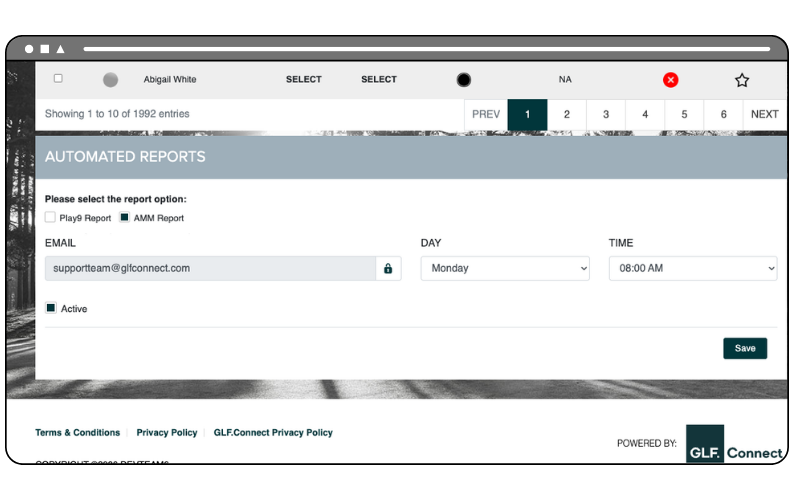
To amend this date and time, navigate to the Customer Care List screen and select the Setup Automated Report button in the top right corner.
You will then be taken to the automated report section at the footer of the screen. This section will display the report options available to you, and you can toggle across the available reports by selecting the checkbox and then defining the day and time that the report will be sent to the email address listed in your profile:
You can view a short how to video below showing you how to Setup your Automated Report:
Interpreting your Report
Whether you automate the delivery of your report or download it directly from GLF, it will be provided in Excel format. The Coach AMM Engagement Report focuses specifically on the memberships assigned to your Customer Care List, giving you a clear view of how your engagements are helping to activate and support the members under your care.
When you open the report, you will see a number of tabs, each designed to help you understand different aspects of your engagement activity and progress.
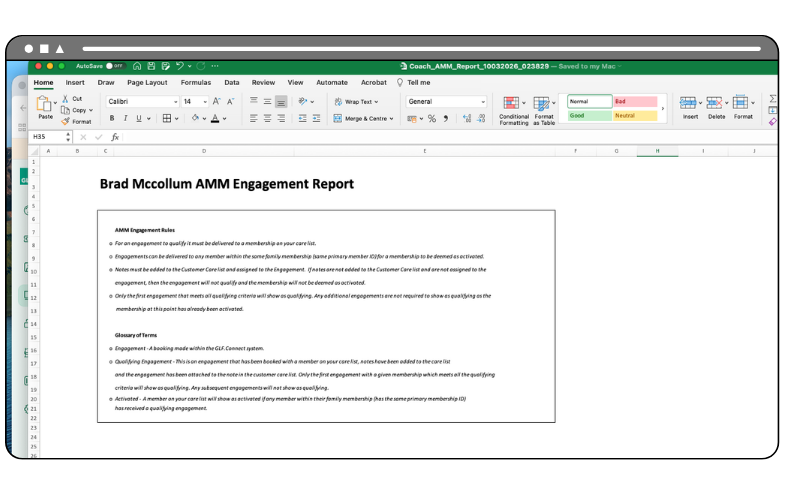
AMM Engagement Rules
This tab provides a reference guide explaining how engagements are counted within the report. It outlines the criteria used to determine when a membership becomes activated and how qualifying engagements are identified. Reviewing this tab can help ensure you understand how activity recorded in the system contributes to the figures shown throughout the report:
Engagement Summary
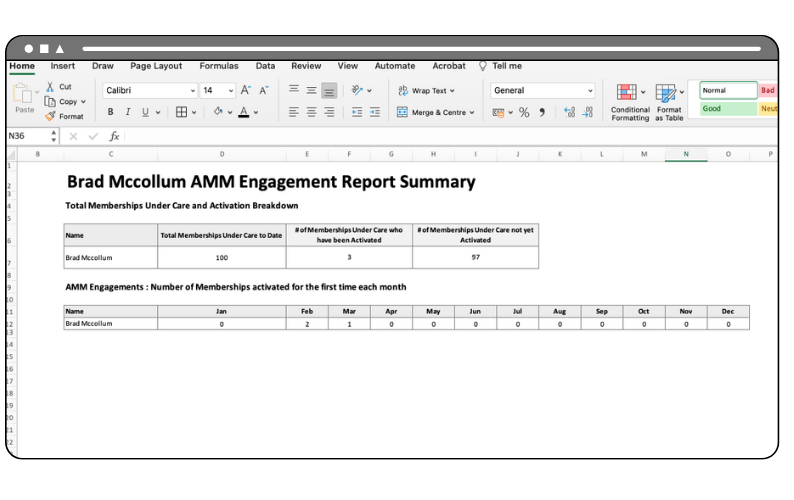
The Engagement Summary tab provides a quick overview of your progress. Here you can see the total number of memberships currently assigned to your Care List, how many of those memberships have already been activated through a qualifying engagement, and how many are yet to receive one. This section also shows how many memberships you have activated throughout the year, broken down by month, helping you track your engagement progress over time:
Care List
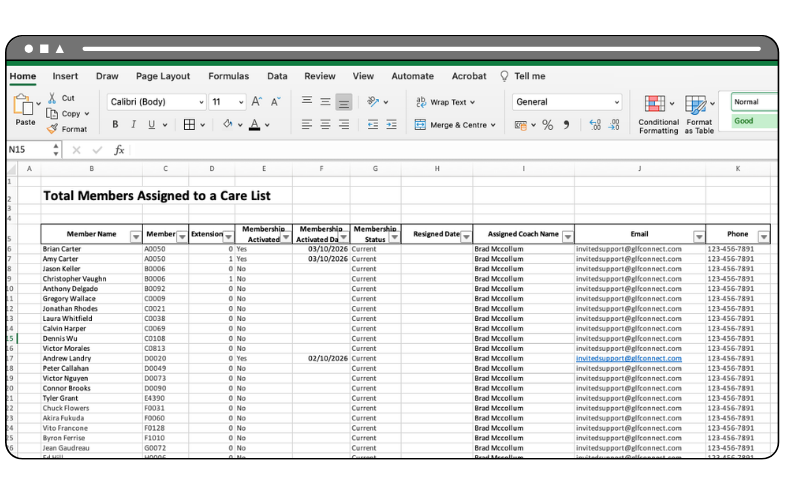
This tab displays all members currently assigned to your Care List. It allows you to quickly review key member details, see whether a membership has been activated, and identify members who may still require their first engagement:
Last 7 Days
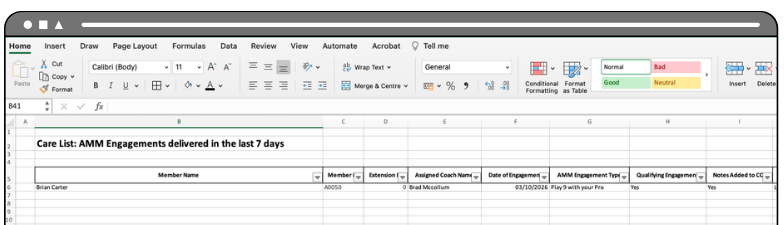
The Last 7 Days tab highlights all engagements delivered to your Care List members within the previous seven days. This provides a useful snapshot of your most recent activity, including the type of engagement delivered and whether it qualified towards activating the membership:
All Engagements
The final tab provides a year-to-date record of engagements delivered to members on your Care List. This allows you to review previous activity, track ongoing engagements with members, and maintain a clear record of your interactions throughout the season.
By reviewing this report regularly, you can monitor which memberships have been activated, identify memberships who may still need their first engagement, and ensure you are connecting with the members assigned to your Care List: